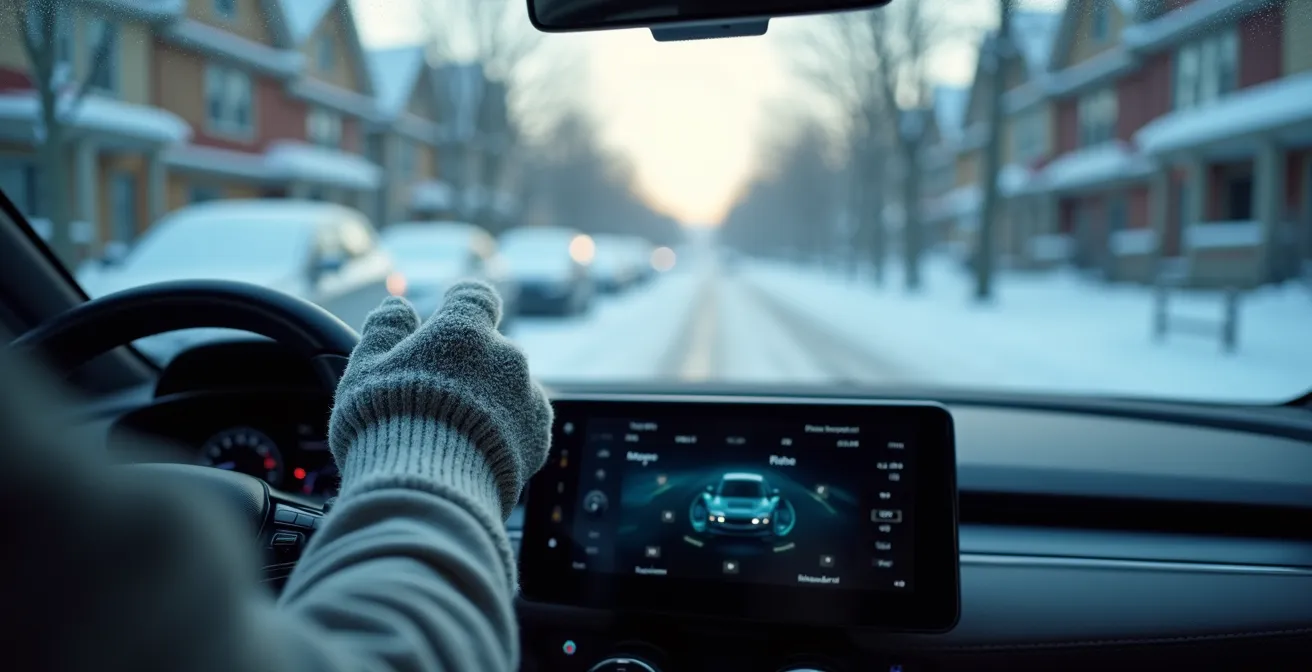
In summary:
- Most touchscreens fail with winter gloves because they require skin contact (capacitive technology).
- Relying on touchscreens increases distraction, a leading cause of fatal accidents on Quebec roads.
- Physical knobs and steering wheel controls are always safer and more reliable in the cold.
- Voice commands are a good secondary option, but can still be distracting.
- Customize your car’s home screen with winter essentials (like heated seats) before you drive to minimize interaction.
It’s a familiar scene on a frigid Quebec morning: you’re bundled up, the car is an icebox, and you just want to turn up the heat. You poke at the glossy touchscreen with your gloved finger. Nothing. You try again, jabbing with more force. Still nothing. With a sigh of frustration, you either risk frozen fingers by taking off your glove or try to navigate a clumsy voice command system while focusing on a slippery road.
The common advice is simple: buy special “touchscreen gloves” or just use voice commands. But if you’re reading this, you probably know those aren’t perfect solutions. The gloves are often not warm enough for a real Canadian winter, lose their conductivity over time, and lack the precision needed for tiny on-screen buttons. Voice commands can misinterpret your request, forcing you to repeat yourself and take your focus off driving.
But what if the problem isn’t your gloves, but the design of the car itself? The shift from tactile, physical buttons to sleek, minimalist touchscreens has created a significant usability and safety gap, especially in cold climates. This guide goes beyond the obvious tips. We’ll explore the real reasons your screen ignores you, the proven safety risks of these systems, and a practical strategy to reclaim control of your cabin without sacrificing safety or warmth.
This article breaks down the science behind the frustration and provides a clear, safety-first hierarchy for controlling your vehicle’s functions during winter. From understanding why haptic feedback fails to customizing your digital cockpit, you’ll learn how to make your modern car work for you, not against you, when the temperature drops.
Summary : Navigating Your Car’s Interface in the Depths of a Canadian Winter
- Why Do Some Screens Work With Gloves and Others Don’t?
- Why Doesn’t Haptic Vibration Replace the Feel of a Real Button?
- Voice Commands vs Touch: Which Is Faster for Changing Temperature?
- The Haptic Trap: Looking at the Screen to Find the Button
- What to Do When Your Touchscreen Stops Responding Mid-Drive?
- Auto Climate vs Manual Fan: Which Warms the Cabin Faster?
- Knobs vs Screens: Which Is Safer to Use While Driving?
- How to Customize Your Digital Cockpit to Reduce Distraction?
Why Do Some Screens Work With Gloves and Others Don’t?
The frustrating reality of jabbing at an unresponsive screen with a gloved finger comes down to a single word: capacitive. The vast majority of modern car infotainment systems use capacitive touchscreens. These screens are coated with a transparent conductive layer that holds an electrical charge. When your bare finger touches the screen, it disrupts this charge, and the system registers the location of the touch. Standard winter gloves, made of insulating materials like wool or leather, block this electrical transfer entirely.
So-called “touchscreen gloves” solve this by weaving conductive thread into the fingertips. This thread acts as a bridge, allowing the electrical charge from your body to pass through the glove to the screen. However, their effectiveness varies wildly. The amount and quality of the conductive thread determine their responsiveness. Often, they require more precise and deliberate presses than a bare finger, which is difficult to do in a moving vehicle.
Even with the best conductive gloves, performance isn’t guaranteed. Some infotainment systems allow you to adjust touch sensitivity in the settings, which can sometimes help. But ultimately, you’re relying on a workaround for a design that wasn’t optimized for cold-weather clothing. It’s a compromise from the start, and as anyone who has tried to type an address on a car’s GPS with bulky gloves knows, it’s a clumsy one. Furthermore, tests show that even a good pair of touchscreen gloves will last a full winter or two at best before the conductive materials degrade.
Why Doesn’t Haptic Vibration Replace the Feel of a Real Button?
Automakers, aware of the backlash against losing physical buttons, have introduced haptic feedback as a compromise. When you press an on-screen “button,” the screen produces a small vibration or “thump” to simulate the feeling of a mechanical click. The idea is to provide confirmation without you needing to look. However, this is what can be called the haptic illusion—it feels like feedback, but it doesn’t solve the core safety problem.
The reason is simple: a physical knob or button is always in the same place. Over time, you develop tactile muscle memory. You can reach down and adjust the fan speed or temperature without ever taking your eyes off the road. A flat, featureless glass screen offers no such spatial cues. You still have to look at the screen to locate the target first. The haptic buzz only confirms you’ve hit *something*, not necessarily the right thing. This glance away from the road is where the danger lies.
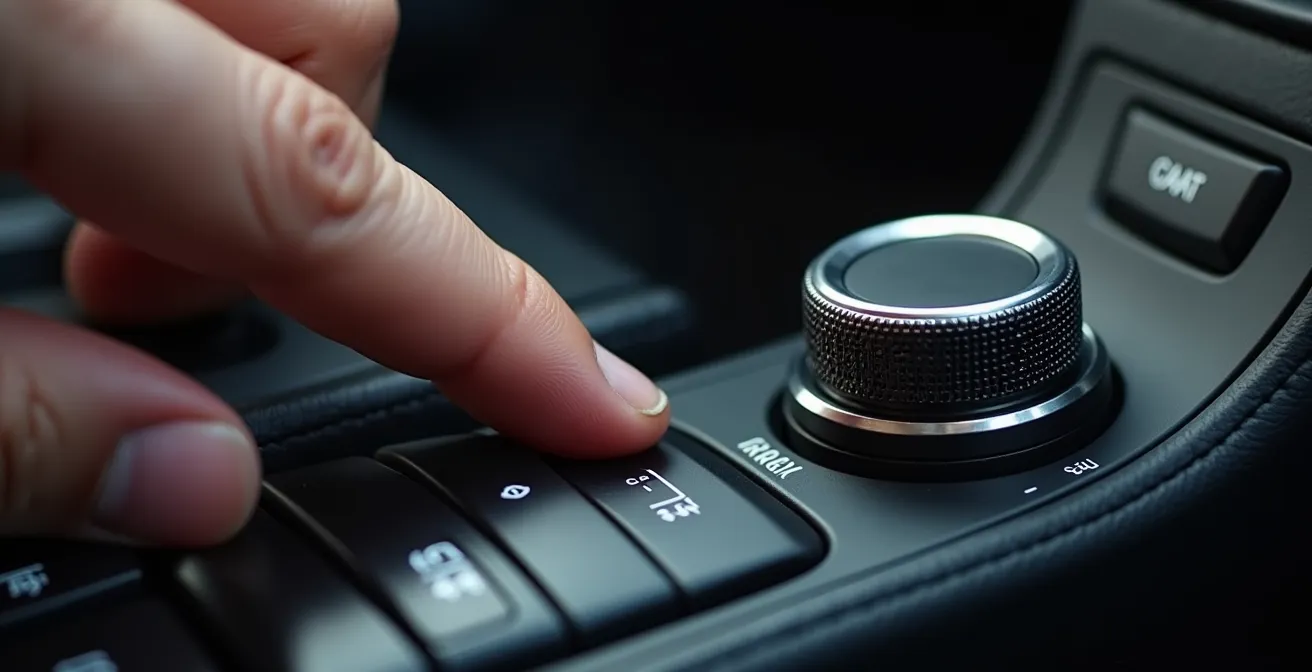
This isn’t a minor inconvenience; it’s a critical safety issue. A report from the CAA-Quebec Foundation highlights that since 2010, driver distraction has been a top cause of road accidents in the province. Frighteningly, it states that in 2017, for the first time, driver distraction was the leading cause of death on Quebec roads. The momentary glance to find the heated seat icon is more dangerous than we think. According to the Insurance Bureau of Canada, at 90 km/h, just 5 seconds of distraction is equivalent to driving past an entire football field with your eyes closed.
Voice Commands vs Touch: Which Is Faster for Changing Temperature?
When touch fails, the go-to alternative is voice command. “Hey [Car Brand], set temperature to 22 degrees.” In theory, it’s the perfect hands-free, eyes-free solution. In practice, the experience is often a mixed bag. The speed and reliability of voice commands depend heavily on the car’s software, ambient noise, and even your accent. A simple command can be quick, but a misunderstood one can lead to a frustrating back-and-forth that is arguably more distracting than a quick button press.
A landmark study by the American Automobile Association (AAA) found that the infotainment systems in many popular models generated “high or very high levels of overall demand on drivers,” failing their safety criteria. This high cognitive load—the mental effort required to complete a task—is the key issue. While your hands are on the wheel, your brain is busy formulating the command, listening for the response, and verifying the outcome.
This table, based on data from various automotive safety studies, gives a general idea of the time and distraction involved in each method.
| Control Method | Time Required | Distraction Level |
|---|---|---|
| Physical Knobs | 1-2 seconds | Minimal (muscle memory) |
| Voice Commands (Simple) | 3-5 seconds | Moderate (requires listening) |
| Touchscreen Controls | 5 to 15 seconds less with Apple CarPlay/Android Auto vs native systems | High (visual attention required) |
The verdict? For a single, simple task like changing the temperature by a degree or two, a well-placed physical knob is almost always faster and safer than either touch or voice. Voice commands are a clear winner over fumbling with a touchscreen, but they are not a magic bullet for eliminating distraction.
The Haptic Trap: Looking at the Screen to Find the Button
The “haptic trap” is the dangerous cycle of touch-look-confirm. Because a flat screen provides no physical landmarks, you are forced to take your eyes off the road to locate the virtual button you want to press. The haptic buzz confirms the press, but by then, the most dangerous part—the glance away—has already happened. This interaction model fundamentally misunderstands how we drive safely, which relies on peripheral awareness and muscle memory, not focused visual attention on a secondary task.
In Quebec, the law is clear about the dangers of distraction. The Highway Safety Code is designed to keep a driver’s attention on the road. While interacting with a screen that is integrated into the vehicle is permitted, it comes with strict conditions. According to Quebec’s `Protecteur du citoyen`, the information displayed must be related to driving. This includes GPS, checking road conditions, or managing vehicle systems like anti-skid or climate controls. However, the key principle is that these actions must not require prolonged attention or complex manipulation that would compromise safety.
This is where touchscreens become a legal and safety grey area. Is a five-second hunt for the defrost icon “prolonged attention”? If it leads to an accident, it almost certainly would be considered so. This is why automakers are increasingly mapping essential functions to steering wheel controls. These are the best compromise, allowing you to keep your hands on the wheel and eyes on the road while cycling through common commands. They are the legally and practically superior alternative to interacting with the main display.
What to Do When Your Touchscreen Stops Responding Mid-Drive?
It’s one thing for a screen to be unresponsive to gloves; it’s another for it to freeze completely on a cold day. This can be alarming, especially if essential controls like defrost are buried in its menus. The most common culprit in extreme cold is the screen technology itself. The Liquid Crystal Displays (LCDs) used in most cars become sluggish and can temporarily freeze when the internal cabin temperature is very low. The liquid crystals simply can’t move as quickly as they need to.
Panicking is the worst response. The car’s core driving functions (steering, braking, engine) are on a separate system and will not be affected. The key is to know where your physical backup controls are. Automakers are legally required to provide physical buttons for critical safety systems like hazard lights and, in most cases, a primary defrost/defog function. As the cabin slowly warms up from the engine heat, the screen will typically return to normal operation on its own.
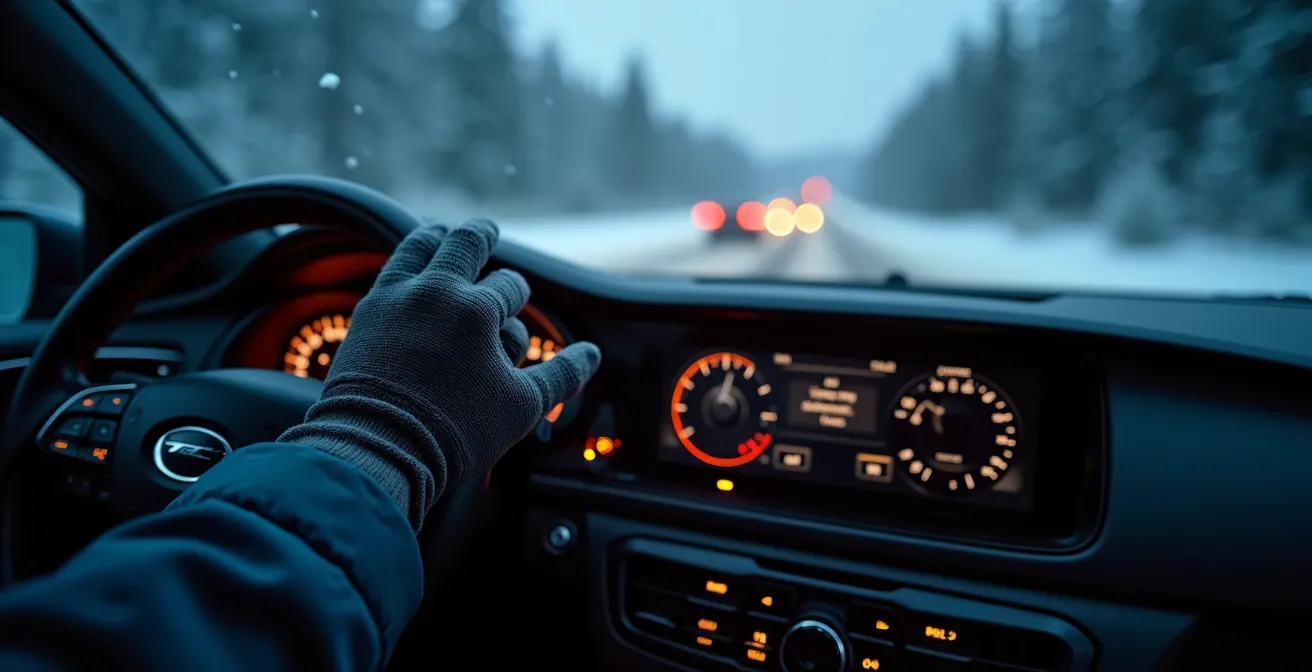
If you find yourself in this situation, a clear head and a simple plan are your best tools. Knowing what to do and what not to do can prevent a moment of tech frustration from becoming a genuine safety incident.
Your 5-Step Emergency Plan for a Frozen Screen
- Stay Calm and Focused: First, do not panic. The part of the system that freezes is the screen itself; your ability to drive the car is not affected. Keep your eyes on the road.
- Locate Physical Backups: Immediately identify your essential physical controls. This includes the hazard lights, front and rear defrosters, and wipers. These are your priority.
- Allow the Cabin to Warm Up: Continue driving safely. As the car’s heater runs, the ambient temperature in the cabin will rise, which is usually all that’s needed for the LCD screen to return to its normal, responsive state.
- Find a Safe Place to Stop: If the screen remains unresponsive after 10-15 minutes and you need to access a non-critical function, plan to pull over at a designated rest area, gas station, or safe shoulder. Do not attempt a reset while driving.
- Perform a Soft Reset (Once Stopped): Once you are safely parked, you can try turning the infotainment system off and on. In some cars, holding the power button for 10-15 seconds will trigger a soft reset, which can resolve the issue without affecting the car’s ignition.
Auto Climate vs Manual Fan: Which Warms the Cabin Faster?
When you’re freezing, your first instinct is to crank the fan to full blast and the heat to max. This is the manual approach. The “Auto” climate control setting, however, takes a more measured approach. It uses sensors to monitor the cabin temperature and automatically adjusts fan speed, air direction, and even AC compressor engagement to reach and maintain your target temperature efficiently. So, which is actually faster to warm you up?
In most modern vehicles, “Auto” mode is faster and more efficient. When you manually blast the fan on a cold engine, you’re just circulating frigid air. The “Auto” system is smarter; it will often keep the fan speed low until the engine coolant has warmed up enough to provide actual heat. Then, it will intelligently ramp up the fan and direct hot air where it’s most effective (typically the floor and windscreen) before easing off as the cabin approaches the set temperature.
More importantly, “Auto” mode is a “set it and forget it” solution that significantly reduces distraction. You set the temperature once at the start of your drive and let the car manage the rest. The manual approach often involves repeated fiddling—turning the fan down once it gets too loud, redirecting air once the windshield is clear, and adjusting the temperature again. Each of these adjustments is a small distraction. Given that a 2024 survey found that 46% of Canadian drivers feel the nation’s roads have become less safe, and most admit to distracted driving, minimizing these small interactions is a meaningful safety improvement.
Knobs vs Screens: Which Is Safer to Use While Driving?
This is the central question in the modern car interior debate. While touchscreens offer a clean look and endless customizability, their impact on driver safety is a serious concern. The data overwhelmingly shows that for core driving functions, physical controls are superior in every safety metric. The primary reason is the elimination of the need for visual confirmation. You can feel a knob’s position or count the clicks of a button without looking away from the road.
This isn’t just an opinion; it’s quantifiable. According to the Canadian Automobile Association, distracted drivers are eight times more likely to be involved in a crash or near-crash incident. Every second your eyes are on the screen is a second they aren’t scanning for hazards. A Swedish car magazine (Vi Bilägare) conducted a real-world test confirming this, finding that drivers in modern touchscreen-heavy cars took significantly longer and covered more distance while performing simple tasks compared to drivers in an older car with physical buttons.
The comparison below clearly illustrates the safety advantages of physical controls, especially in a challenging winter driving environment.
| Control Type | Eyes-Off-Road Time | Cognitive Load | Winter Performance |
|---|---|---|---|
| Physical Knobs | 0.5-1 seconds | Low (muscle memory) | Works with any gloves |
| Touchscreen | Requires driver to take eyes off the road | High (visual confirmation needed) | Limited with winter gloves |
| Voice Commands | 0 seconds | Moderate | Unaffected by gloves |
The conclusion is clear. While we can’t reverse the industry trend, we can create a personal safety hierarchy: prioritize physical knobs and buttons first, use steering wheel controls as the next best option, rely on simple voice commands for non-urgent tasks, and use the touchscreen as a last resort, preferably while stopped.
Key takeaways
- The war on buttons has made cars less safe, especially in winter climates like Quebec’s.
- Muscle memory for physical controls is a critical safety feature that touchscreens eliminate.
- A proactive “winter mode” setup is the best strategy to minimize screen interaction while driving.
How to Customize Your Digital Cockpit to Reduce Distraction?
Since we are forced to live with touchscreens, the smartest strategy is to minimize your interaction with them while the car is in motion. The key is to think like a pilot performing a pre-flight check. Before you put the car in drive, you should configure your “winter cockpit.” Most modern infotainment systems allow for some level of customization. Taking a few minutes to set this up can dramatically reduce your distraction on the road.
The goal is to create a home screen or a set of easily accessible shortcuts for the functions you use most in winter. Instead of navigating through three menus to find the heated steering wheel icon, place it directly on your main screen. This preparation is the single most effective way to mitigate the inherent flaws of a touchscreen-centric design.
Here is a practical plan for winter-proofing your digital interface:
- Create a “Winter” Home Screen: If your system allows, create a custom home screen. Drag and drop the icons for heated seats, heated steering wheel, front/rear defrost, and fan controls onto this main page for one-touch access.
- Prioritize Apple CarPlay or Android Auto: Studies have shown these systems are generally easier to use and require less attention than automakers’ native systems. Their larger icons and simpler layouts are a safety advantage.
- Pre-Program Voice Commands: Before driving, ensure your phone is paired and practice the voice commands for your most-used winter functions. Know the exact phrasing for “set temperature to 21 degrees” or “turn on heated seats.”
- Understand Your System’s Logic: Take five minutes in your driveway to learn the menu structure. Knowing intuitively that climate controls are always in the bottom-left corner reduces the “search time” when you do need to glance at the screen.
This proactive approach shifts the interaction from a reactive, distracting task while driving to a deliberate, safe setup while parked. This is critically important in Quebec, where, according to the SAAQ, distracted driving accounts for about 34 per cent of deaths on the road. Customizing your cockpit is a direct, personal action you can take to avoid becoming part of that statistic.
Take five minutes before your next winter drive to set up your screen shortcuts and practice your voice commands. This small investment of time is the most effective way to make your drives safer and less frustrating all winter long.
Frequently Asked Questions About Screen Use While Driving in Quebec
Can I legally touch my car’s infotainment screen while driving in Quebec?
Yes, but with strict limitations. The law permits interaction with screens integrated into the vehicle, provided the information is driving-related. According to the Quebec’s Protecteur du citoyen, you can check your GPS, road or weather conditions, and manage vehicle systems like parking assistance or climate controls. The key is that it must not require prolonged attention that compromises safety.
Is adjusting climate controls on a touchscreen considered distracted driving?
Adjusting climate controls is generally permitted as it’s a driving-related function. However, if the action requires you to navigate through multiple menus or takes your eyes off the road for more than a brief moment, it could be considered distracted driving by a law enforcement officer, especially if it leads to erratic driving.
What about using steering wheel controls instead?
Steering wheel controls are the highly recommended and safest alternative. They are explicitly designed to allow you to manage common functions—like volume, cruise control, and often basic climate adjustments—without taking your hands off the wheel or your eyes off the road, fully complying with the spirit and letter of the Highway Safety Code.