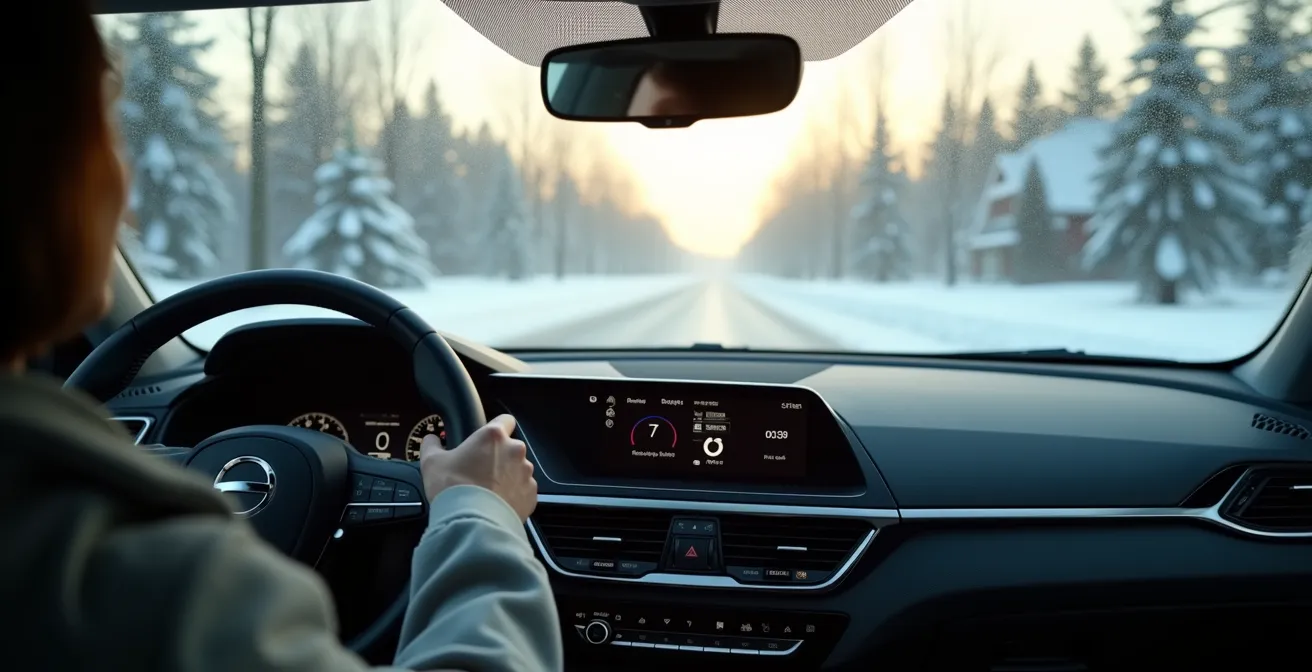
In summary:
- Treat your car’s screen not as a gadget, but as a critical safety system that requires proactive setup.
- Prioritize physical controls (knobs, buttons) over touchscreen interactions for essential functions to minimize time with your eyes off the road.
- Understand Quebec’s strict distracted driving laws; touching a phone in a mount is illegal, even at a red light.
- Adapt your interface for Quebec’s winters by creating shortcuts and using voice commands to bypass slow, cold screens.
- Properly cleaning your screen and keeping software updated not only improves safety but also protects your car’s resale value.
The glow of the digital cockpit promises a futuristic driving experience, yet for many Quebec drivers, it has become a source of profound frustration and danger. You’re trying to merge onto the Décarie Expressway, but the simple act of turning up the heat is now a three-tap process through a labyrinth of menus. This struggle isn’t a personal failing; it’s a design problem. The conventional advice—”set your GPS before you drive” or “use voice commands”—scratches the surface but fails to address the core issue: a high cognitive load imposed by a poorly organized interface.
These systems are often designed with features first and driver focus second. They overwhelm us with information, turning the cabin into a minefield of potential distractions. But what if the solution wasn’t just to react to these distractions, but to proactively eliminate them? The key to safer driving isn’t just about what you shouldn’t do (like touch your phone), but about what you should do before you even put the car in drive. This is about transforming your screen from an attention-demanding gadget into a “calm interface.”
This guide offers a new perspective, grounded in user experience (UX) principles and tailored for the realities of driving in Quebec. We will move beyond the obvious tips to give you a strategic framework for digital decluttering. We’ll explore the science behind why physical knobs are safer, the specific laws you must know, how to battle a frozen screen on a January morning, and even how a well-managed interface protects your car’s resale value. It’s time to take control and design your cockpit for what matters most: your safety.
To help you navigate these crucial adjustments, this article is structured to tackle the most common pain points and provide clear, actionable solutions. Explore the sections below to master your vehicle’s interface and significantly reduce your cognitive load while driving.
Summary: A Guide to Customizing Your Car’s Digital Cockpit for Safety
- Why Is Your Touchscreen Slow or Frozen on Cold Mornings?
- Knobs vs Screens: Which Is Safer to Use While Driving?
- The Distracted Driving Fine: Touching Your Screen vs Your Phone
- The Cleaning Mistake That Ruins Anti-Glare Coatings on Screens
- How to Set Up “One-Touch” Shortcuts for Home and Work?
- The Resale Value Mistake That Costs Owners $5,000 After 4 Years
- Is It Legal to Touch Your Phone in a Phone Mount at a Red Light?
- How to Use Your Car’s Touchscreen While Wearing Winter Gloves?
Why Is Your Touchscreen Slow or Frozen on Cold Mornings?
That frustrating lag on your car’s touchscreen during a frigid Quebec morning isn’t your imagination. It’s a physical limitation of the technology. Most automotive displays use Liquid Crystal Display (LCD) panels. The liquid crystals inside become more viscous in the cold, slowing their ability to change state and respond to commands. This sluggishness directly impacts usability and safety, turning a simple task like activating the defroster into a distracting ordeal. The problem is quantifiable; industry analysis shows that touch response can slow by 20% below -10°C, a common temperature during our winters.
This “interaction cost”—the time and mental effort required to use the system—spikes dramatically in the cold. A command that takes a single glance in July might require multiple glances and taps in January, increasing the time your eyes are off the road. The solution isn’t to jab at the screen harder, but to reduce your reliance on it during those critical first minutes of driving. Using a remote starter to pre-heat the cabin is the most effective method, as it allows the screen’s components to reach an optimal operating temperature before you even get in.
Furthermore, this is a perfect scenario for proactive customization. Before winter arrives, take the time to program voice commands for your most-used cold-weather functions: “Turn on front defrost,” “Set fan to max,” or “Activate heated steering wheel.” By doing this, you create a workaround that completely bypasses the physically impaired touchscreen. This small investment of time pays huge safety dividends, keeping your focus on navigating icy roads, not a stubborn interface.
Knobs vs Screens: Which Is Safer to Use While Driving?
The automotive industry’s pivot to sleek, glass cockpits has come at a significant cost to safety. From a User Experience (UX) perspective, the superiority of physical controls—knobs, dials, and buttons—for core driving functions is not a matter of opinion; it’s a matter of human factors science. Physical controls leverage muscle memory and tactile feedback, allowing you to perform actions like adjusting volume or temperature without looking. Your hand knows where the knob is, and you can feel the click of each incremental change, confirming the action is complete. This keeps your eyes and your cognitive resources focused on the road.
Touchscreens, in contrast, demand your full visual attention. There is no muscle memory for a virtual slider that might be on a different menu screen today than it was yesterday. You must look, locate the target, and confirm the action visually, a process that is fundamentally more distracting. A landmark study by the Swedish car magazine Vi Bilägare provided stark evidence of this. The study found that drivers in modern cars with touchscreens took up to four times longer to perform simple tasks compared to drivers in an older car with physical controls.
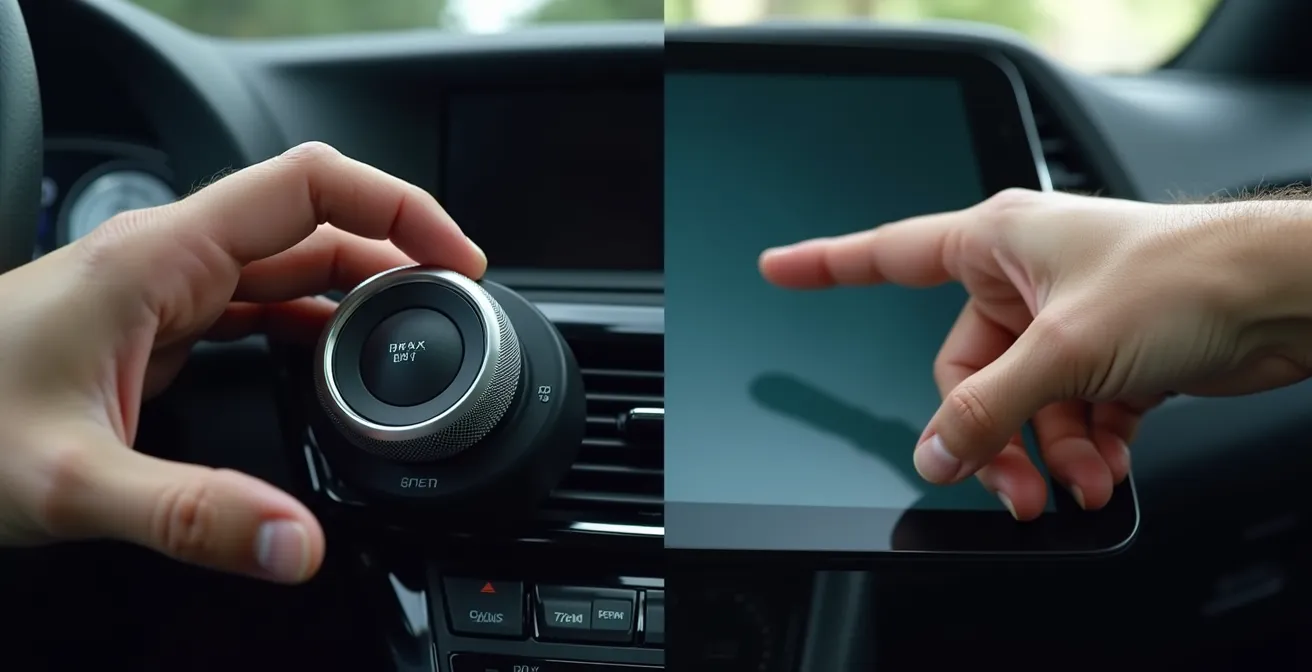
This split-second difference is critical. The image below illustrates the ergonomic divide: on one side, a confident hand operating a tactile knob; on the other, a hesitant finger searching a flat, featureless surface. This visualizes the core problem of high interaction cost.
As a driver, your safety strategy should be to minimize touchscreen interaction while the vehicle is in motion. Identify the functions you use most (climate, volume, defrost) and make a conscious effort to use their physical counterparts if available. If a function is buried in a menu, see if it can be assigned to a physical shortcut button on the steering wheel or console. Every tap you can convert to a click is a direct investment in your safety.
The Distracted Driving Fine: Touching Your Screen vs Your Phone
In Quebec, the law makes a critical distinction between interacting with your car’s built-in screen and handling a portable electronic device like a smartphone. Understanding this difference is crucial to avoiding severe penalties. The Société de l’assurance automobile du Québec (SAAQ) is clear: any interaction with a hand-held device is illegal and carries heavy consequences. This includes not just texting or calling, but any form of manipulation. Under Quebec’s Highway Safety Code, a distracted driving infraction results in a $300-$600 fine and 5 demerit points, a penalty that can significantly impact your driving record and insurance premiums.
Conversely, using the vehicle’s integrated touchscreen for functions related to driving (e.g., climate control, manufacturer-installed navigation, audio system) is generally permitted. The logic is that these systems are designed for and integrated into the driving task. However, this permission is not a free pass for distraction. The primary responsibility of every driver is to maintain control of their vehicle at all times. If a police officer determines that your interaction with the built-in screen compromised your ability to drive safely, you could still be charged with careless driving.
The key takeaway is the physical act of holding a device. A phone in a mount occupies a legal grey area that offers little protection. As the Quebec Ombudsman clarifies, touching a mounted phone is still considered illegal use. The following table breaks down common scenarios to clarify what is and isn’t allowed while driving in Quebec.
| Action | Built-in Screen | Phone in Mount | Legal Status in Quebec |
|---|---|---|---|
| Adjusting climate controls | ✓ | ✗ | Legal |
| Changing radio station | ✓ | ✗ | Legal |
| Typing GPS address while moving | ✗ | ✗ | Illegal |
| Touching phone at red light | N/A | ✗ | Illegal |
| Using voice commands only | ✓ | ✓ | Legal |
This data, based on a clarification from the Protecteur du citoyen, underscores the safest strategy: limit all interactions to the car’s native system or hands-free voice commands. Your phone should remain untouched.
The Cleaning Mistake That Ruins Anti-Glare Coatings on Screens
Your vehicle’s touchscreen is more than just a piece of glass; it’s a sophisticated component with a delicate anti-glare and anti-fingerprint coating. Using the wrong cleaning products, like household glass cleaners (e.g., Windex), alcohol, or ammonia-based solutions, can permanently strip these coatings. This damage leads to increased glare from the sun, making the screen harder to read at a glance and forcing your eyes to linger away from the road for longer. It also makes the screen a magnet for smudges, further reducing clarity.
In Quebec, the challenge is compounded by winter conditions. Road salt residue can be transferred to your screen from your gloves or hands, and this abrasive material can cause micro-scratches if wiped away improperly. The thermal shock of applying a cold cleaning liquid to a warm screen (or vice-versa) can also stress the display’s layers. The proper method requires care and the right materials, treating the screen like a high-end camera lens rather than a window.
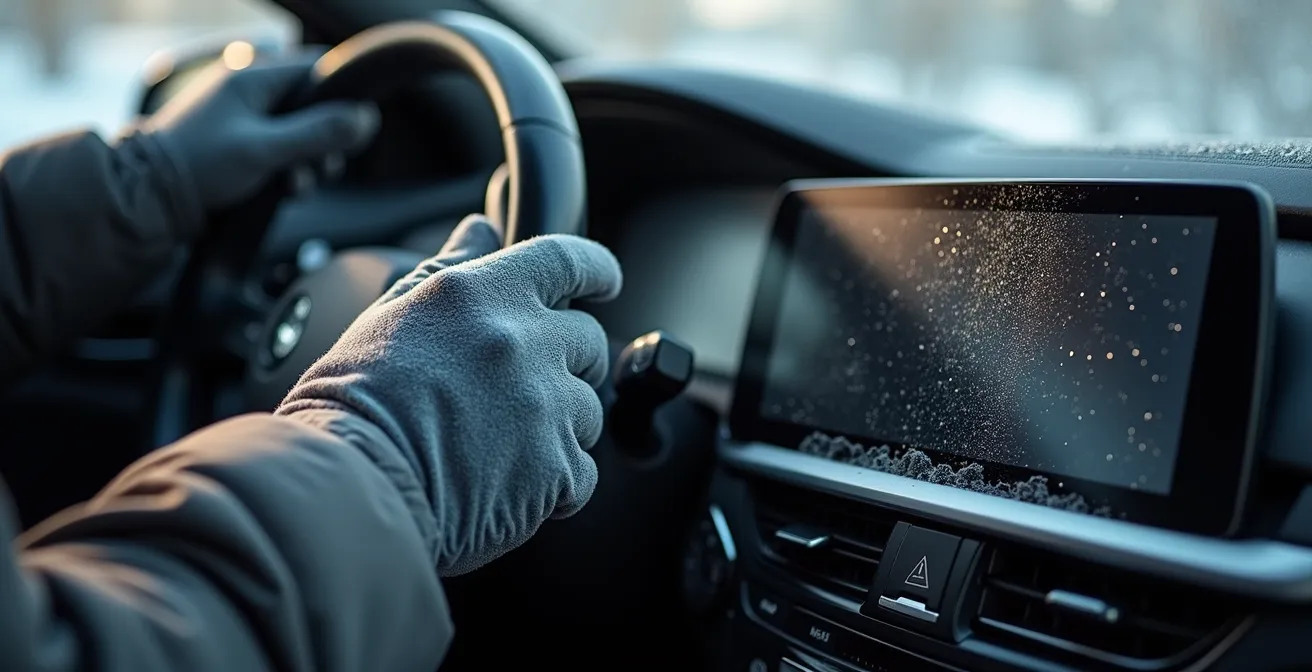
A pristine screen is a safety feature. It reduces the cognitive load required to process information, allowing you to get the data you need—your next turn, the current song—in a fraction of a second. A smudged, glaring screen forces you to squint and refocus, a dangerous distraction. Follow a dedicated cleaning process to preserve the screen’s integrity and ensure optimal visibility year-round.
Your Action Plan: The Quebec-Proof Screen Cleaning Method
- Assess readiness: Before cleaning, ensure the screen is off and at cabin temperature to prevent thermal shock and damage to the coating.
- Gather tools: Use two separate, high-quality microfiber cloths (available at stores like Canadian Tire or Bureau en Gros) and a small spray bottle of distilled water only.
- Execute initial wipe: Lightly dampen the first cloth with distilled water. Gently wipe the screen in one direction to lift and remove abrasive particles like dust or salt residue without grinding them in.
- Perform final polish: Use the second, completely dry microfiber cloth to polish the screen, removing any remaining streaks or moisture for a perfectly clear finish.
- Implement a protection plan: To minimize future cleaning and protect the original surface, apply a high-quality, automotive-grade matte screen protector.
How to Set Up “One-Touch” Shortcuts for Home and Work?
The single most dangerous interaction with an infotainment system is manually typing an address into the GPS while driving. It’s a visually and cognitively demanding task that is unequivocally illegal and unsafe. The most powerful tool to combat this risk is proactive customization: setting up “one-touch” navigation shortcuts for your most frequent destinations like “Home,” “Work,” or “Garderie.” Investing just five minutes to do this can save you from countless minutes of distraction over the life of your car.
Most modern infotainment systems, including Apple CarPlay and Android Auto, allow you to save favorite locations. The process typically involves searching for an address once, then finding an option to “Save,” “Add to Favorites,” or mark it with a star. Once saved, these locations often appear as large, easy-to-press icons on the navigation home screen. The goal is to reduce the interaction cost of starting a trip to a single tap. This eliminates the need for typing, searching, or even complex voice commands when you’re in a hurry.
For a truly streamlined experience, create a dedicated “home screen” on your car’s interface. Drag your “Home” and “Work” navigation shortcuts to this main screen, alongside other high-frequency, low-distraction apps like your music or podcast player. This digital decluttering turns your main screen into a mission control panel for 90% of your driving needs, keeping less critical apps tucked away. You are essentially designing your own simplified user interface, prioritizing what is essential and hiding what is not. This act of curation is a fundamental principle of safe and effective HMI (Human-Machine Interface) design.
The Resale Value Mistake That Costs Owners $5,000 After 4 Years
When considering a vehicle’s resale value, most owners focus on mileage and physical condition. However, in the age of the digital cockpit, the performance and usability of the infotainment system have become a major, often overlooked, factor. A system that is slow, buggy, or has an outdated interface is not just an annoyance; it’s a tangible financial liability. Savvy used-car buyers are now testing the responsiveness of the touchscreen just as they would test the transmission. A laggy, frustrating system can easily knock thousands off the perceived value of a vehicle.
The most significant mistake an owner can make is failing to perform software updates. Many manufacturers release Over-the-Air (OTA) updates that fix bugs, improve performance, and sometimes even refresh the entire user interface. These updates are the equivalent of a digital tune-up. Ignoring them means you are letting your car’s most visible feature degrade over time. While not all cars support this, research shows a growing trend, with some automotive HMI development research indicating that up to 28% of new systems are OTA-capable. For cars without OTA, updates may be available through a dealership, often during routine service.
As a leading automotive technology analyst from Consumer Reports, Keith Barry, highlights, the connection between usability and value is direct. His insight encapsulates the modern car-buying mindset:
An outdated, slow system is more distracting. Savvy buyers know this, and it impacts their offer.
– Keith Barry, Consumer Reports automotive technology analysis
Therefore, keeping your system updated is a crucial part of vehicle maintenance. It ensures a safer, less distracting driving experience for you and sends a powerful signal to a future buyer that the vehicle has been well-cared for, both mechanically and digitally. This simple action helps protect your investment and differentiates your car in a competitive used market.
Is It Legal to Touch Your Phone in a Phone Mount at a Red Light?
This is one of the most common and dangerous misconceptions among Quebec drivers. The answer is an unequivocal no. It is strictly illegal to touch or otherwise manipulate a phone in a mount at any time while you are in control of a vehicle on a public road, and this includes when you are stopped at a red light or in traffic. Section 443.1 of Quebec’s Highway Safety Code prohibits a driver from using a handheld electronic device. The courts and the Protecteur du citoyen have repeatedly clarified that “using” includes any form of interaction, even a quick tap on a mounted device.
The rationale is simple: a red light is a temporary stop, not a pause from the act of driving. A driver’s primary responsibility is to remain aware of their surroundings—pedestrians, cyclists, emergency vehicles—and be prepared to move when the light changes. Engaging with a phone, even for a moment, fragments your attention and delays your reaction time. This principle of continuous awareness is the bedrock of road safety.
The penalties for ignoring this rule are severe and identical to being caught texting while moving. For repeat offenders, the consequences escalate beyond fines and demerit points. The amended Highway Safety Code allows for an immediate administrative license suspension of 3 to 30 days for subsequent offenses. This zero-tolerance approach reflects the serious danger posed by this form of distraction. The only legal ways to interact with your phone while driving are through integrated systems like CarPlay or Android Auto (using the car’s screen) or via 100% hands-free voice commands. Your hands must never touch the device itself.
Key takeaways
- Proactive Customization is Key: Design your ‘calm interface’ before you drive by setting up one-touch shortcuts and decluttering your home screen.
- Physical Over Digital: For core functions, always default to physical knobs and buttons to leverage muscle memory and keep your eyes on the road.
- Know Quebec Law: Touching a phone, even in a mount at a red light, is illegal and carries severe penalties. Use integrated systems or voice commands only.
- Maintenance is a Safety Feature: Regularly cleaning your screen with the correct materials and performing software updates reduces glare and lag, minimizing distraction.
How to Use Your Car’s Touchscreen While Wearing Winter Gloves?
The challenge of operating a capacitive touchscreen with winter gloves on is a familiar frustration for every Quebec driver. Standard gloves act as an insulator, blocking the electrical charge from your finger that the screen needs to register a touch. This forces a dangerous choice: remove a glove, losing warmth and grip on the wheel, or struggle with the unresponsive screen. Neither is a safe option when you should be focused on the road. From a UX standpoint, the system fails the user in this common environmental context.
The primary solution is to, once again, design a system that bypasses the need for direct screen interaction. The most robust method is to extensively program and practice using your vehicle’s voice command system for all common in-car functions. Before winter sets in, take 20 minutes to learn the specific commands for climate control (“Set temperature to 21 degrees”), navigation (“Navigate home”), and audio (“Play my ‘Morning Commute’ playlist”). The more fluent you are with voice commands, the less you will ever need to touch the screen with or without gloves.
Another powerful strategy is to maximize your use of steering wheel controls. Many vehicles allow you to customize these buttons to cycle through audio sources, answer calls, or activate the voice command system. Making these physical, tactile buttons your primary interface during winter months is the safest possible approach. For those moments when screen interaction is unavoidable, the only viable hardware solution is to purchase gloves woven with conductive thread in the fingertips. These are widely available at Quebec retailers like Simons or La Cordée and allow you to operate the screen as you would with a bare hand. Creating a “Winter Mode” on your home screen with extra-large icons for essentials can further reduce the interaction cost when using these specialized gloves.
Now is the time to take action. Before your next drive, dedicate 15 minutes to auditing your car’s digital interface. Set up those navigation shortcuts, declutter your home screen, and practice the key voice commands. This small investment of time is the most important step you can take toward creating a safer and calmer driving experience for yourself and everyone else on the road.
Frequently Asked Questions About Customizing Your Digital Cockpit
Can I set shortcuts in French if my car system is in English?
Yes, most modern systems support multilingual voice commands and can recognize location names in both French and English, regardless of the system language setting.
How do I create a shortcut for locations like ‘Cottage in Laurentians’?
Save the exact GPS coordinates as a favorite, then assign it to a home screen shortcut with a custom name that works in both languages.
Will CarPlay shortcuts work if I switch between French and English phones?
CarPlay shortcuts are tied to your Apple ID, so they’ll transfer regardless of phone language, but voice commands may need to match the phone’s language setting.